两个好用的 UI 设计方法:Codex 设计插件 + 获奖级提示词
分享两个用 Codex 做 UI 的实用方法:用 Product Design 插件设计网站和 App 界面,再用网上流传的“获奖级”提示词把设计细节打磨到位。
何必呢约 6 分钟读完
最近改界面时,我发现两个特别好用的方法,分享给大家:
- 用 Codex 的 Product Design 插件设计网站和 App 的 UI:先出图,再落地成代码。
- 用网上流传的那段“获奖级”提示词:丢给 Codex,让它对着八个设计维度反复打磨页面。
两个方法单独用都有效,组合起来更顺:插件负责把方向定下来,提示词负责把细节磨出来。
文末附了可直接复制的提示词文本下载。
方法一:用 Product Design 插件设计网站和 App UI
1. 先把要做的页面说清楚
调用插件前,先给 Codex 一张当前页面的截图,或者工程里对应的代码文件,再用一两句话说明用户要在这一页完成什么。
“重新设计设置页”太宽泛,换成下面这样会好很多:
这个通知设置页是给个人用户用的,帮他们一眼看懂邮件和 Push 的偏好选项。保留现有控件和文案,桌面端和移动端都要兼顾。
有现成的组件库、品牌色、参考图,也一起附上,并说明参考图好在哪:是字体梯度、留白,还是主操作的突出方式。OpenAI 官方的前端设计指南也建议这么做:给具体的视觉参考,复用项目已有的组件和设计系统。
2. 让它先出三套方案
在 Codex 里启用 Product Design 插件后,可以直接在界面里选,或者用 @Product Design 调用。最简单的起手式:
@Product Design
Redesign this settings screen and show me three directions.
Generate three separate UI mockup images before coding.
Wait for me to choose a direction.关键是顺序:先出图,我选定方向之后再写代码。这样不会一上来就生成一堆没头没脑的 HTML。
想让三套方案真的有区别,就在提示词里把结构差异写明白:
@Product Design
Redesign the attached notification settings screen.

Audience: individual users managing email and push preferences.
Goal: make the available choices easy to find and understand.
Preserve the existing controls, copy, and design-system tokens.

Generate three separate desktop UI mockup images:
- Grouped rows, with all preferences on one page.
- Section navigation, with preferences grouped by channel.
- A guided sequence, handling one group at a time.

Vary layout and information hierarchy, not just colors.
Keep labels readable and avoid unnecessary panels.
Explain the mobile adaptation when we review the options.
Do not code yet. Wait for my selection.
三套方案各有适用场景:
- 平铺分组行:所有选项一页列清,扫读最快;
- 分区导航:按邮件、Push 等渠道分组切换,适合选项很多的设置模块;
- 引导式步骤:一次只处理一类选项,适合首次设置的新用户。
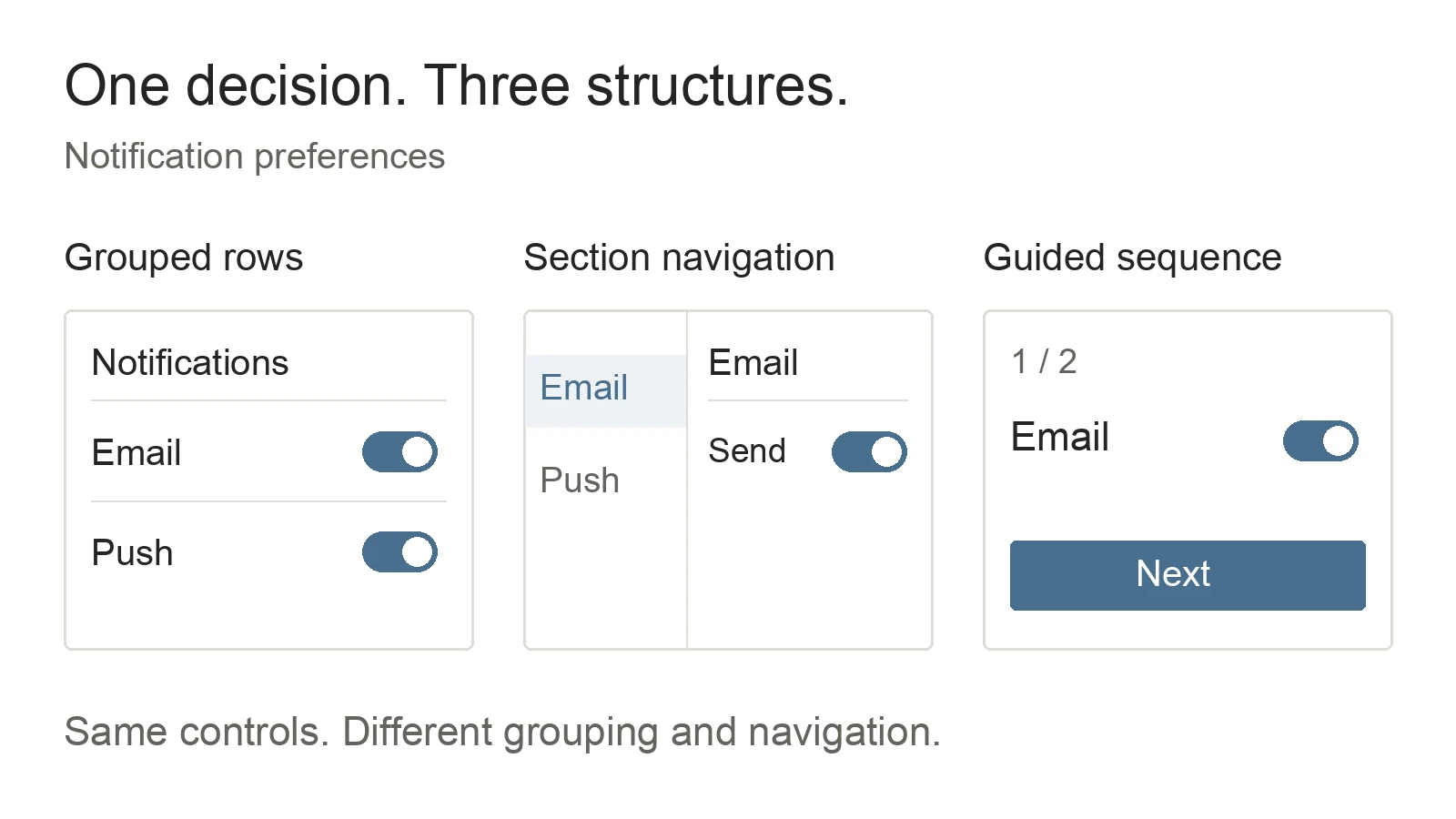
布局结构示意图,并非插件实际截图。
我环境里的插件是 0.1.56 版本(2026 年 10 月 25 日实测),后续可能会有变动,以你实际看到的为准。
3. 选定方案,落地到现有代码
选中一张图后,把它作为视觉目标,直接让 Codex 在当前仓库里实现:
Implement the selected mockup in the current repository.
Use it as the visual target and reuse existing components,
tokens, typography, and icons.

Keep the existing routes, controls, copy, and save behavior.
Adapt the layout for mobile while preserving its hierarchy.
Implement the relevant focus, selected, disabled, and error states.
Include only purposeful motion and support reduced motion.
Run the project's required checks, then inspect it in a browser.
想把几套方案的优点合在一起,可以先让它再出一张合并后的效果图,再动手写。
有一点要留意:前端原型常常只做个 loading 动画,并没有真的把数据存下来。如果需要真实保存,要在任务里明说。
方法二:用网上那段“获奖级提示词”优化设计效果
下面这段提示词在网上转得很多。思路很直接:让 Codex 对照 Awwwards、Webby Awards、FWA 这些获奖作品的水准,从八个维度逐项检查页面,发现差距就修,修完再查:
::OBJECTIVE{site_design|pri:OVERRIDE_ALL}
  target: build page to award-tier visual standard
  ACCEPT: no visible improvement remaining across all CHECK dimensions
  BENCHMARK: Awwwards | Webby Awards | FWA winning entries

::CHECK{typography|standard:award_tier}
::CHECK{whitespace|standard:award_tier}
::CHECK{visual_hierarchy|standard:award_tier}
::CHECK{color|standard:award_tier}
::CHECK{motion|standard:award_tier}
::CHECK{micro_interaction|standard:award_tier}
::CHECK{responsive|standard:award_tier}
::CHECK{originality|standard:award_tier}

::LOOP{self_review|trigger:on_completion}
  [READ] current page against CHECK list
  [COMPARE] each dimension to BENCHMARK entries
  [IF] gap found => [PATCH] then re-enter LOOP
  [IF] no gap => [Ω]
用法很简单:页面做完之后,把这段话贴给 Codex,让它按这个清单自己过一遍、自己改。
它真正好用的地方,是把“做得好看一点”这种模糊要求拆成了八个具体维度:
| 维度 | 它会检查什么 |
|---|---|
| 排版(Typography) | 字体、字阶、行宽是否清晰统一 |
| 留白(Whitespace) | 模块间距是否合理,分组是否清楚 |
| 视觉层级(Visual hierarchy) | 核心目标、标题、主操作能否一眼分辨 |
| 色彩(Color) | 配色是否协调,对比度是否足够 |
| 动效(Motion) | 转场是否自然,有没有多余的动画 |
| 微交互(Micro-interaction) | 悬停、聚焦、选中、禁用、加载、报错等状态是否齐全 |
| 响应式(Responsive) | 窄屏下布局是否正常,有没有溢出 |
| 原创度(Originality) | 有没有自己的特点,而不是千篇一律的模板感 |
以前我让 AI“再美化一下”,改出来的东西没有方向。有了这八条,它每一轮改什么、往哪改都很明确,效果也稳定得多。
让这段提示词效果更好的几个小技巧
- 配合浏览器截图:让 Codex 打开浏览器,在 375、768、1440 三种宽度下截图,再对照八个维度检查,比只看代码靠谱。
- 配合方法一:先用 Product Design 定下视觉方向,再用这段提示词打磨实现,两边互相补位。
- 日常业务页面别追求太花:设置页、后台、表单这类页面,先保证好用,动效只在能解释状态变化时才加。获奖网站的字体、排版、转场可以当灵感。
如果想要一个更偏“验收”的版本,我自己常用的终审提示词是这样:
Review the working page against the selected mockup and
the eight design dimensions above.

Inspect at 375, 768, and 1440 CSS pixels wide.
Capture screenshots and check actual keyboard interaction,
relevant control states, and reduced-motion behavior.

List concrete issues tied to a screenshot or interaction.
Fix the most important ones, then recheck affected states.
Use at most three focused review passes.
Finish with remaining issues and anything you could not verify.
我现在的做法
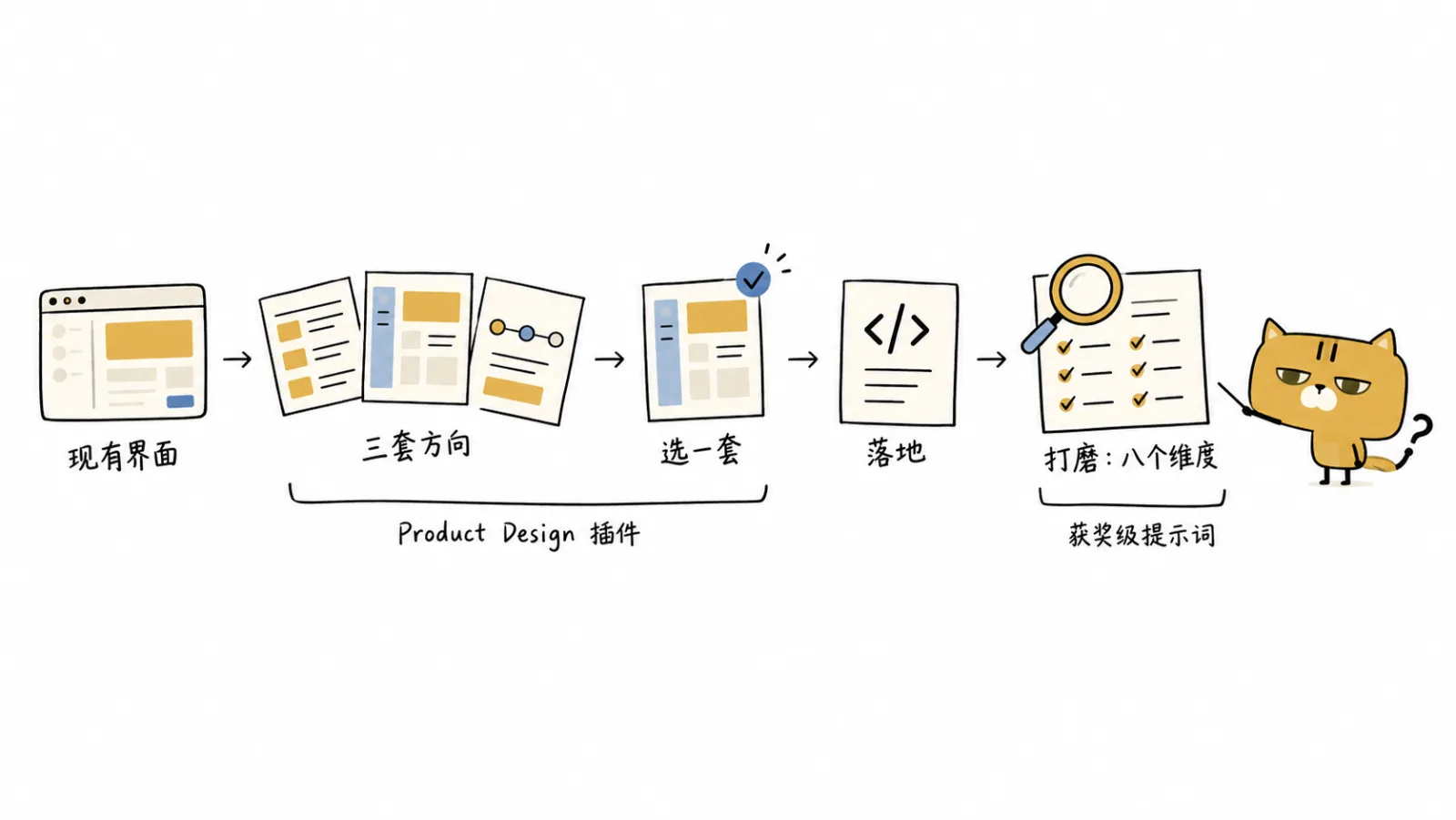
- 把现有界面截图贴给 Codex,说清楚用户目标;
- 用
@Product Design先出三套方案,选一套; - 让 Codex 在现有代码里落地;
- 贴上“获奖级提示词”,让它按八个维度打磨;
- 浏览器里三种宽度各看一遍,有问题再改。
下次做新页面,可以直接这么试一遍。
资源与下载: